Tech Matters: How long should you keep your laptop?
-

- A shopper looks over Apple MacBook laptops on display in a Costco warehouse Tuesdya, June 2, 2026, in Sheridan, Colo. (AP Photo/DAvid Zalubowski)
-

- Leslie Meredith
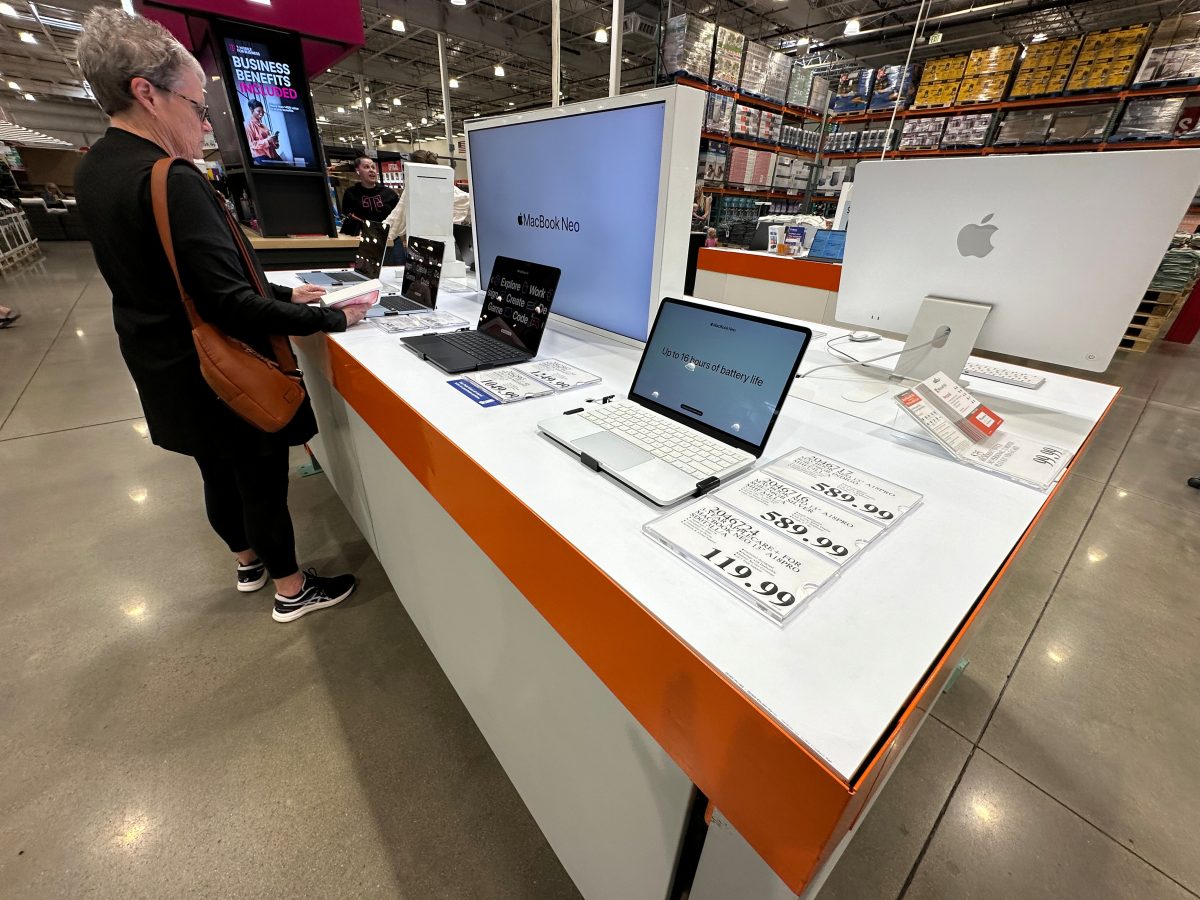
A shopper looks over Apple MacBook laptops on display in a Costco warehouse Tuesdya, June 2, 2026, in Sheridan, Colo. (AP Photo/DAvid Zalubowski)
For years, the conventional advice was to replace your laptop every five years. That made sense when new computers offered noticeable improvements, prices were relatively stable, or coming down for comparable features. But we know that’s no longer the case.
Research firm Gartner estimates that personal computer prices will increase 17% this year as the cost of memory and solid-state drives climbs. Gartner also predicts that entry-level computers selling for less than $500 will disappear by 2028. If your laptop still meets your needs, replacing it simply because it is five years old may no longer make financial sense. Before you start shopping, learn how to keep your machine running longer.
Start by checking Microsoft’s Windows support schedule. Microsoft currently supports its operating system releases for 24 months. If you have a computer that’s around five years old, it will be running either Windows 10 or 11.
If your laptop is running Windows 10, Microsoft no longer supports the operating system with updates. But you do have an option to get security updates, which is the most important type of update when you’re trying to extend the life of your computer. You can enroll in Microsoft’s Extended Security Update (ESU) program, which will provide an extra year of security updates. It costs $30 and runs until October 12, 2027. To see if your device qualifies, go to Settings and then Windows Update. If you see an option to enroll in the program this means your machine qualifies. Buy the extra year of security.
If you’re running Windows 11, know that Microsoft has released six versions of that operating system, and some have already reached the end of their support cycle. Support for Windows 11 23H2 ended Nov. 11, 2025, and the expiration for Windows 11 24H2 is right around the corner, ending Oct. 13, 2026. If you did not upgrade to the latest version when it was released, now is the time to do it so you continue to get the updates. You can do that through Windows Update or the Windows 11 Installation Assistant. Updating to a newer version is free.

Photo supplied
Leslie Meredith
If the computer cannot run a supported version of Windows, ask a repair technician whether a hardware upgrade is possible to run Windows 11. If not, make sure you are running a security program with real-time updates to protect your laptop from malware.
The battery is often the first major component to show its age. Windows 11 can produce a report that compares the battery’s original capacity with the amount of charge it can hold today. Here’s how:
Select Start and type “Command Prompt.” Right-click Command Prompt, choose “Run as administrator” and select Yes. Type “powercfg /batteryreport” and press Enter. Windows will create an HTML file and display its location. Open that file and compare “Design Capacity” with “Full Charge Capacity.”
A lower full-charge number is normal as a battery ages. If it has dropped substantially and the laptop now needs to remain plugged in most of the time, replacing the battery may make the computer run normally again. If the battery begins to swell or push against the case, stop using the laptop and have it replaced immediately.
Managing storage is another area that can improve the performance of a laptop, regardless of its age. Open File Explorer, click “This PC” and look at the free space on your C: drive. Try to keep at least 15% to 20% of the drive available. When a solid-state drive becomes too full, the computer may slow down because Windows has less room for temporary files and routine operations.
If space is tight, uninstall programs you no longer use, empty the Recycle Bin and move large photos or videos you want to keep to an external drive or cloud storage. Search for “Storage Sense” and turn it on. Windows can then remove temporary files and other unneeded data automatically.
Too many programs may also be loading every time Windows starts. Search for “Startup apps” and review the list. Turn off programs you do not need immediately. You are not deleting them. You are simply preventing them from launching automatically and consuming memory in the background.
Heat can shorten the life of internal components. Dust blocks airflow and forces the laptop to run hotter. Use compressed air to clean the vents occasionally, following the manufacturer’s instructions. Do not take the case apart unless you know what you are doing.
There’s no need to automatically replace a five-year-old laptop. Replace it when it can no longer do what you need or be repaired at a reasonable cost. Until then, age alone is not a reason to retire it.
Leslie Meredith has been writing about technology for more than a decade. As a mom of four, value, usefulness and online safety take priority. Have a question? Email Leslie at asklesliemeredith@gmail.com.